How to Turn Your Old iPhone into a Security Camera (2026 Guide)
April 7, 2026
You can turn any old iPhone running iOS 12 or later into a home security camera with an app like Oriel. Install the app on both your old and current iPhone, scan a QR code to pair them, and start monitoring in under 5 minutes. No additional hardware, no technical skills required.
What You Need
- An old iPhone (iPhone 5s or later, running iOS 12+)
- Your current iPhone (to use as the viewer)
- A Wi-Fi connection (both devices need internet access, but not necessarily the same network)
- A power source near where you want to place the camera
- A security camera app (this guide uses Oriel)
Oriel works on any iPhone that can run iOS 12: the iPhone 5s, 6, 6s, SE (1st gen), 7, 8, X, and everything newer. The iPhone 5s and 6/6 Plus stop at iOS 12, so the App Store offers them the last compatible version of Oriel; the iPhone 6s and newer get the current version.
Step-by-Step Setup (5 Minutes)
-
Prepare Your Old iPhone
Clear out apps and photos you no longer need. Oriel stores event recordings on the camera device and keeps them for up to 7 days (14 days with Premium). If storage runs low, the oldest clips are deleted first.
-
Download the App
Install Oriel from the App Store on both devices: the old iPhone that will act as the camera, and your current iPhone that you'll use as the viewer.
-
Pair with a QR Code
On your current iPhone, choose “Set up viewing phone” and sign in, then tap “Show QR Code” on the Cameras screen. On the old iPhone, choose “Set up camera phone” and scan that code. The camera phone does not need its own account, and no Bluetooth pairing is needed.
-
Allow Camera Access
On the old iPhone, grant camera and microphone permissions when prompted.
-
Start Monitoring
The camera feed appears on your viewer. Enable push notifications so you're alerted when motion is detected. Position the camera where you want to monitor.
Where to Place Your iPhone Camera
Entryways and Front Door
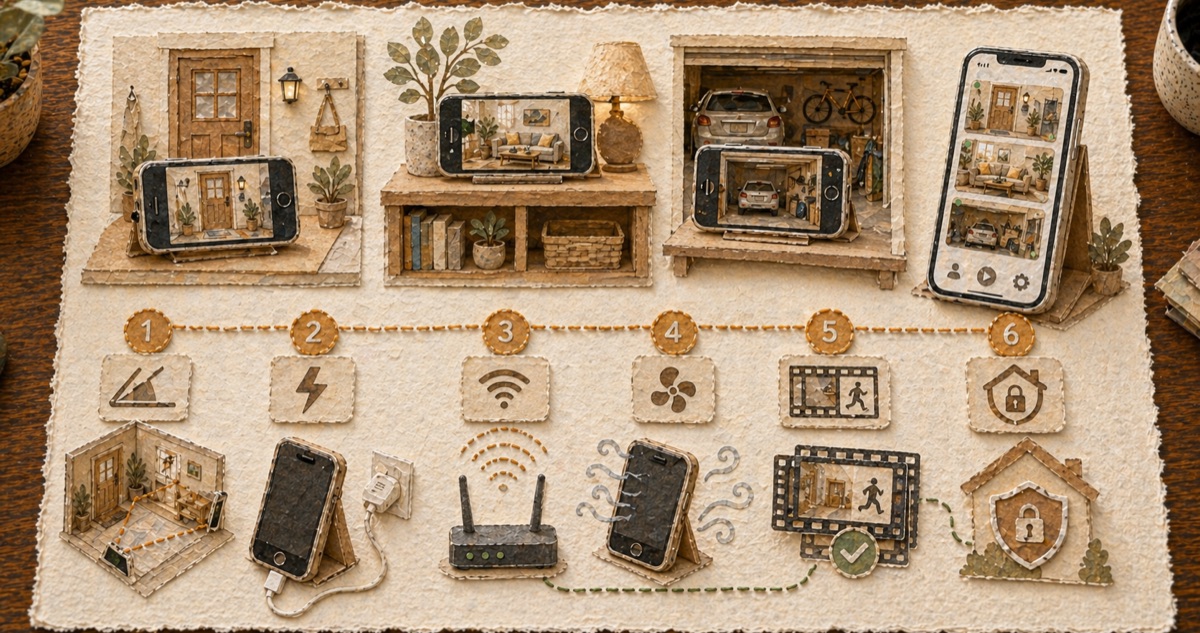
A front door or entryway camera is the most common placement. Position it at chest height or slightly above, angled toward the door. Avoid pointing it directly at a window — the backlight will wash out the image during the day.
Living Room
A high shelf or bookcase gives a wide field of view. Aim for a corner position so the camera covers both the room entrance and the main area. Keep the device plugged in — a continuously streaming camera will drain battery in 3–5 hours without power.
Baby's Room
Mount the phone above the crib pointed downward. A phone stand or mount works well here. Keep cables out of reach. The app's two-way audio lets you speak to the room from your viewer phone.
Pet Area
Place it on a stable surface at pet level or slightly above. If your pet roams the house, a higher position covering a wider area works better than a close-up.
General Tips
- Keep the lens clean — a dusty lens significantly reduces image quality
- Avoid pointing directly at light sources
- The closer the phone is to your Wi-Fi router, the more stable the connection
- Test the view on your viewer before finalizing placement
Optimizing Performance
Battery and Heat
Keep the camera device plugged into a charger at all times. Continuous streaming generates heat — if the phone gets warm, move it away from direct sunlight and ensure there's airflow around it. Avoid enclosed spaces. If the device overheats, iOS will throttle performance automatically.
You can reduce battery load slightly by lowering the streaming resolution in the app settings, though this also reduces image quality.
Storage
Recordings are stored on the camera device. Event clips are recorded when motion is detected and kept for up to 7 days (14 days with Premium). If you turn on Continuous Recording, the free plan keeps up to 24 hours of footage (up to 7 days with Premium). When storage runs low, the oldest recordings are deleted first, so leave a few GB free.
Night Vision
Most iPhones lack infrared LEDs, so true night vision isn't available. In low-light conditions, image quality degrades significantly. For nighttime monitoring, position the camera near a soft light source — a hallway light or nightlight is enough to maintain usable image quality. Avoid complete darkness if reliable nighttime monitoring matters to you.
Privacy Considerations
Oriel uses WebRTC for live video. It tries a direct encrypted connection between camera and viewer; some networks require an encrypted TURN relay. Recordings stay on the camera phone unless you enable cloud backup.
Local recordings remain on the camera device if Oriel’s servers are unavailable.
* Oriel uses WebRTC for direct encrypted connections between devices. In some network environments, the connection may relay through an encrypted TURN server. That server handles connection routing only and cannot access video content.
Troubleshooting
Camera feed not showing
Check that both devices are connected to the internet and that the camera appears in the camera list on your viewer phone. If the feed still doesn't appear, try force-quitting and reopening the app on both devices. On the camera device, confirm that camera permission is granted in iOS Settings > Privacy > Camera.
Poor video quality
Move the camera device closer to your Wi-Fi router, or check that neither device is on a congested network. Lower streaming resolution in app settings if the connection is consistently slow. Clean the camera lens with a soft cloth.
High battery drain
Keep the camera device plugged in — this is expected behavior for a continuously streaming device. If you can't keep it plugged in, lower streaming resolution and disable features like two-way audio to extend battery life.
Motion detection sensitivity
If you're getting too many false alerts (trees, shadows), increase the sensitivity threshold in settings. If you're missing motion events, lower the threshold. You can also set a detection zone to focus on a specific area of the frame.
FAQ
What's the oldest iPhone I can use as a security camera?
Any iPhone running iOS 12 or later. That includes the iPhone 5s (released 2013) and all newer models: the iPhone 5s, 6/6 Plus, 6s, SE (1st gen), 7, 8, X, XS, XR, and the 11 through 16 lines. The current version needs iOS 13, so the App Store offers the iPhone 5s and 6/6 Plus the last compatible version of Oriel. Older models like the iPhone 5/5c are limited to iOS 10 and cannot run the app.
Do both iPhones need to be on the same Wi-Fi?
No. Both devices need internet access, but they can be on completely different networks. You can monitor your home camera from a different city. The camera is linked to your account when it scans the QR code, so it does not rely on local network discovery.
Can I use more than one old iPhone as cameras?
Yes. Oriel supports unlimited cameras on one account. Show the QR code on your viewer phone again and scan it with each old iPhone you want to add. All feeds appear in your viewer app.
Can I turn off the screen while the camera is running?
No. The screen stays on in camera mode — it dims automatically to save power, but it cannot be turned off. Streaming and motion detection run continuously while the screen is dimmed.
Can I use an old iPad instead of an iPhone?
Yes. Any iPad running iOS 12 or later works as a camera or viewer; on iOS 12, the App Store offers the last compatible version. The setup process is identical.
How much data does it use?
When both devices are on Wi-Fi, the stream uses no cellular data. If you're viewing over cellular (for example, checking the camera while away from home), expect roughly 200–500 MB per hour depending on streaming quality.