Help Center
Save Battery on Camera Side
Use Display Saver without stopping capture, detection, recording, or Live View.
Short answer
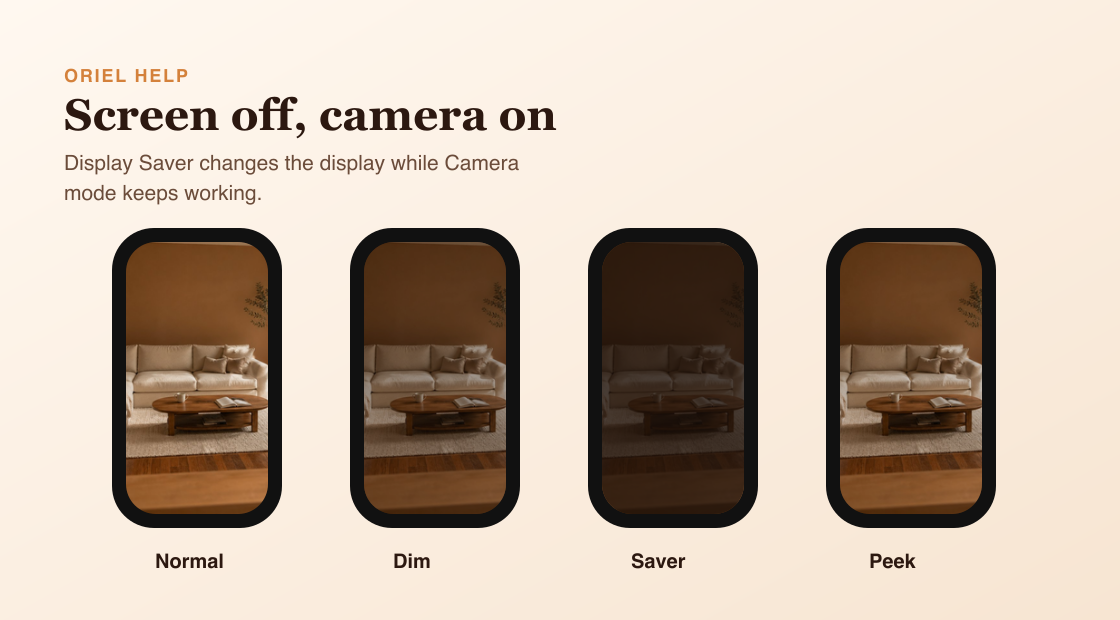
Display Saver dims the screen and can cover it with a dark overlay while the Camera device continues working.
How it works
Display Saver changes the screen only. It does not stop camera capture, pause detection, pause Continuous Recording, or end Live View. Tap the screen to peek when needed, then let the Camera device return to its dimmed state.
Requirements
- Camera mode running on the Camera device.
- Power connected for long-running use.
- A cool, ventilated placement for the device.
Setup steps
- Open Camera mode on the Camera device.
- Enable Display Saver.
- Leave the Camera device plugged in for long sessions.
- Tap the screen only when you need to peek.
Common misunderstandings
- Display Saver does not turn off the camera.
- Display Saver does not reduce capture quality by itself.
- Display Saver does not fix heat, weak Wi-Fi, or bad placement.